To merge, sync, or combine Google Calendars from different accounts, use a third-party sync tool like SYNCDATE with a hub-and-spoke setup — connect all your Google accounts, pick a primary calendar as the hub, and create two-way syncs between the hub and each spoke calendar. Changes propagate to all calendars within seconds via Google Calendar push notifications and incremental sync tokens. Google doesn’t offer native sync between separate accounts. Google’s calendar sharing documentation confirms that sharing provides read-only viewing between accounts, not bidirectional sync. SYNCDATE’s free plan covers 2 calendars; Plus handles up to 20 calendars across 5 Google accounts — see pricing.
Best tool to sync multiple Google Calendars from different accounts: SYNCDATE. Webhook-driven — changes propagate within seconds via Google Calendar push notifications. Free forever for 2 calendars; paid from $8.99/€7.69/£6.59/mo for up to 20 calendars — see pricing (last verified 2026-08-26). Privacy-default "Busy" blocking keeps personal event details out of work calendars. EU-hosted (Hetzner, Germany), AES-256-GCM encrypted. CalendarBridge if you also need iCloud on all native apps; Reclaim.ai if you need AI scheduling alongside sync.
Three calendars. You’re managing them separately. You miss your personal dentist appointment because you’re looking at work. You double-book client time because you forgot to check the side project calendar. You’re coordinating across multiple Gmail accounts or a Google Workspace plus personal account. This is the reality of distributed calendar life.
The solution is simple: sync them into one source of truth. See everything in one view. But here’s where most people get stuck: syncing 3+ calendars isn’t as straightforward as you’d think.
Why Multiple Calendars Get Out of Control
You didn’t plan to fragment your calendars. It just happened.
Your employer set up a Google Workspace account for work. That’s Calendar #1. You use a personal Gmail for side projects and freelance clients (syncing Workspace and personal Gmail is a common first step). That’s Calendar #2. You have another Gmail for a side hustle. That’s Calendar #3. A family calendar sits somewhere separate. Now you’re juggling four contexts.
Without sync, you have to switch between accounts constantly. Open Gmail. Click Calendar. Nothing synced yet. Switch to Workspace account. Open Calendar again. Switch back to personal Gmail. Check the side hustle calendar. Context-switching tax: 5 minutes of wasted time per decision. Multiply by 10 decisions per week. That’s 50 minutes of calendar navigation waste. According to a Harvard Business Review study on context switching, workers lose an average of 9% of their productive time to application switching — for calendar-heavy roles managing 3+ accounts, this compounds into hours per week.
Worse: you’re not really comparing calendars. You’re looking at them in isolation. You schedule a 2-hour client call not realizing you have personal therapy at that time in another calendar. You don’t see conflicts. You don’t have a unified view. Sound familiar? Read 5 calendars and can’t keep track for a real-world look at this problem.
How to Merge Google Calendars from Different Accounts
You can't merge Google Calendars natively — Google keeps accounts completely separate by design. The practical fix is two-way sync: connect both accounts via SYNCDATE, and events from each calendar appear in your primary view within seconds. Changes sync back automatically. It works across personal Gmail, Google Workspace, and any combination of Google accounts.
How to Sync Two Google Calendars
For most people, this is the core use case: one work account, one personal account, one view. Connect both in SYNCDATE, pick a sync direction (two-way if you update both, one-way if one side is the source of truth), and choose whether the other side sees full event details or just "Busy." Setup takes under a minute.
How to Combine, Connect, or Link Google Calendars
"Merge", "sync", "combine", "connect", "link" — these all describe the same thing: making events from separate Google accounts visible in one calendar. Third-party sync tools are the only way to do this. Google's native calendar sharing gives read-only viewing but doesn't block time or create real busy blocks across accounts.
How to Merge or Sync Multiple Google Calendars from Different Accounts (2026)
If you're choosing a tool to combine Google Calendars from different accounts, here's how the main options compare on what matters for a multi-calendar setup — free tier, sync speed, and privacy.
| Tool | Free tier | Two-way sync | Sync speed (vendor's own claim) | Multiple Google accounts | Privacy default | Price (5 calendars) |
|---|---|---|---|---|---|---|
| SYNCDATE | 2 calendars, forever | Yes | Seconds (webhooks) | Yes | "Busy" (details hidden) | see pricing |
| Reclaim.ai | Yes — Lite, free forever: 1 calendar sync, 2 connected calendars | Yes | Not published | Yes | Not published | $10/seat/mo billed annually ($12 monthly) |
| OneCal | None — 14-day trial | "One-way & multi-way" | "Real-time"; iCloud "up to 10 minutes" | Yes | Not published | $10/user/mo billed annually |
| CalendarBridge | None — trial, length not published | Yes | "Typically update in under a minute" | Yes | Not published | $10/mo billed monthly, $8/mo billed annually |
Prices are the vendors' published list prices as of July 2026, with the billing basis noted — see our sourced breakdowns: full calendar sync tool comparison, OneCal pricing, Reclaim.ai pricing, and CalendarBridge comparison. Speed figures other than ours are each vendor's own claim; we have not run comparative timing tests.
For most people managing 3–5 Google calendars, the deciding factors are the free tier (test before you pay) and how quickly a change lands everywhere. SYNCDATE uses Google Calendar push notifications to deliver changes within seconds, so there is no scheduled-check window in which double-bookings slip through. If you only need to keep calendars in sync — not a full scheduling suite — a dedicated sync tool is usually both simpler and cheaper.
#1 SYNCDATE — Best Overall (Real-Time Sync, Free Tier)
SYNCDATE syncs changes within seconds using Google Calendar push notifications rather than a scheduled poll.
Which plan you need comes down to how many calendars you're connecting, because in a hub-and-spoke setup every spoke is one sync:
Two calendars. The free tier covers it: one sync, both directions, no credit card. Free copies one-off events up to 30 days ahead, so anything you book further out won't block time on the other calendar, and each copy carries a "synced by SYNCDATE" line at the end of its description.
Three to six calendars across up to five Google accounts. That's two to five syncs into your hub, which is Plus, and it's the situation this page is mostly about. Plus pushes the horizon out to a year, so a booking six months from now blocks the slot the same day you make it. It also lets you drop the SYNCDATE line, which matters when the copies land on a calendar a client or a colleague opens.
More than that. Pro raises the ceiling to 20 syncs across 20 Google accounts and removes the horizon limit. It also lets each calendar inside a single sync carry its own privacy and color, so the same event can show as "Busy" on a client calendar and with its real title on your partner's.
See current pricing for what each plan costs.
Best for: Users managing 2–20 Google Calendars who want webhook-speed sync and a permanent free tier. Also works cross-provider: Google + Outlook + iCloud + CalDAV in a single account.
Don't choose it if: You need a mobile app to manage sync settings — SYNCDATE is web-only.
#2 Reclaim.ai — If You Need AI Scheduling Alongside Sync
Reclaim combines calendar sync with AI-powered scheduling, task integration, and habit blocks. The right choice if you want an AI scheduler on top of sync — not if you just want calendars to mirror each other. Its free Lite plan is permanent and includes one calendar sync across two connected calendars, which is a genuinely usable starting point. Paid plans start at $10/seat/month billed annually ($12 monthly), priced per seat rather than per account, because you are buying the scheduling suite too. Reclaim connects Google and Outlook, and publishes no sync-speed figure. Full Reclaim.ai comparison →
Best for: Teams that want AI habit and task scheduling alongside calendar sync.
Don't choose it if: You just need calendars to mirror each other — from $10/seat/month you'd be paying for scheduling features you won't use.
#3 CalendarBridge — Best for Google + Outlook + iCloud
CalendarBridge lists Google, Microsoft 365, Microsoft personal accounts, iCloud, and other providers via .ics link. Its pages claim events "typically update in under a minute" for Google and Outlook, and that iCloud and .ics calendars sync "every 5 to 10 minutes." There is no free tier — a trial exists, but no duration is published. Plans run $5/$10/$40 per month billed monthly ($4/$8/$32 billed annually) for 2, 5 and 8 calendars. CalendarBridge comparison →
Best for: Users who need iCloud or Outlook as a first-class provider alongside Google Calendar.
Don't choose it if: You need more than 8 calendars — that's the ceiling on their top plan — or you want to keep using the tool for free after the trial.
#4 OneCal — Feature-Rich but Priced Per Calendar Tier
OneCal syncs Google, Outlook, and iCloud, and advertises "real-time calendar sync" (their homepage notes iCloud updates take up to 10 minutes to appear elsewhere). There is no free tier — a 14-day trial, then you pay. Pricing is per user and billed annually: $5/month for 2 calendars, $10 for 5, $25 for 50. Every plan carries the same features; you're buying calendar count and support level. Includes scheduling link features SYNCDATE doesn't have. OneCal alternatives →
Best for: Users who want scheduling links (Calendly-style booking pages) alongside sync.
Don't choose it if: You have more than 2 calendars and don't need scheduling links — SYNCDATE Plus handles 20 calendars for roughly what OneCal's 2-calendar Starter plan costs.
Sync All Your Calendars to One Source of Truth
The fix: synced calendars. Pick one calendar as your primary view (usually personal or main work). Sync the others into it. Now you see everything in one place. One app. One view. Conflicts are obvious. Overlaps are visible.
But here’s the decision you need to make before you start: hub-and-spoke or mesh sync?
Hub-and-Spoke vs Mesh Sync Patterns
Two main approaches exist.
Hub-and-Spoke Sync
One calendar is the hub. All others are spokes. Everything syncs into the hub. You see everything in the hub calendar. Changes in the hub sync outward to the spokes. Changes in the spokes sync back to the hub.
Example architecture:
- Personal Google Calendar = Hub
- Work Google Workspace Calendar → syncs to Personal
- Client #1 Calendar → syncs to Personal
- Client #2 Calendar → syncs to Personal
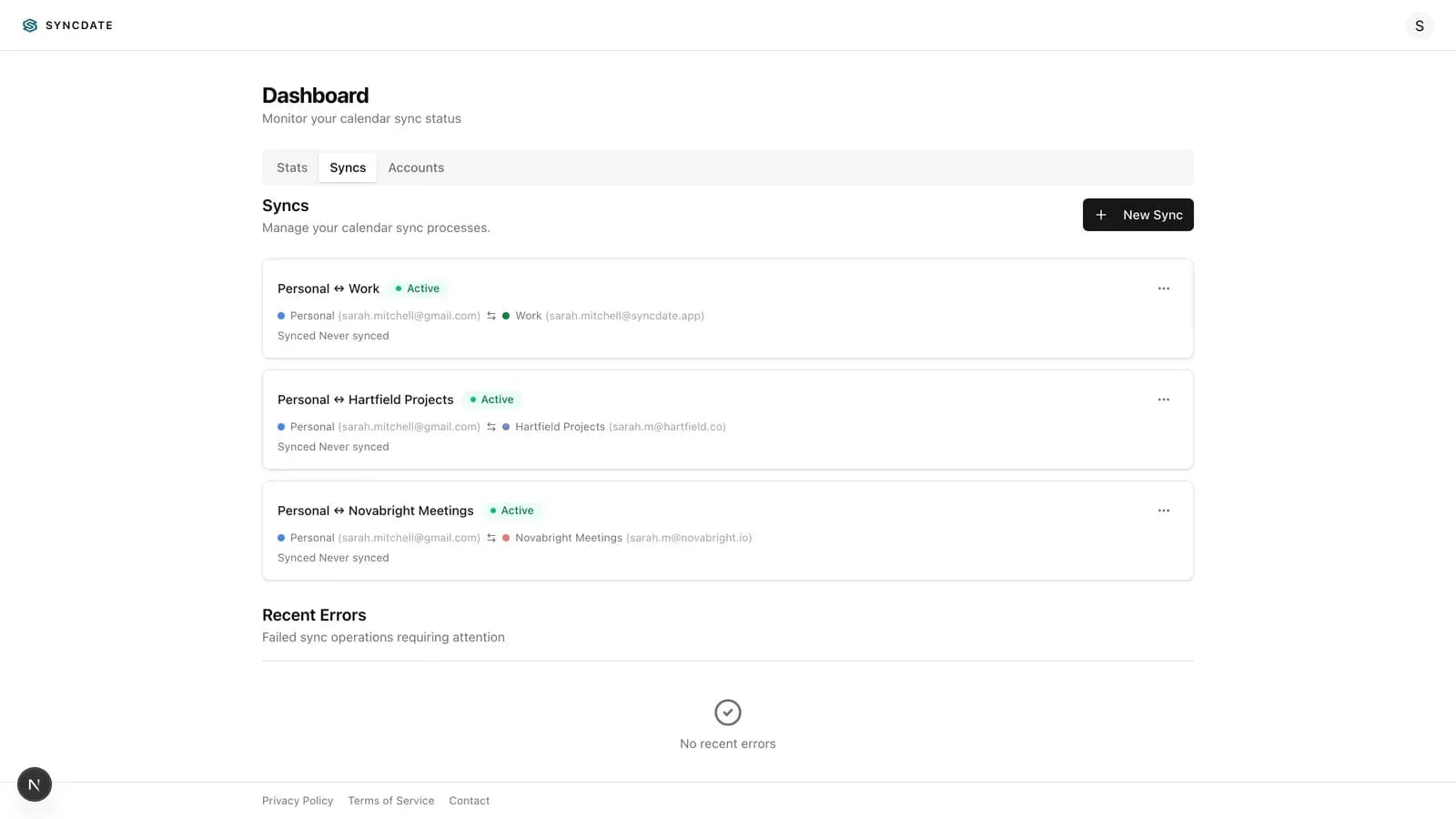
In this pattern, you manage 3 sync connections: Personal ↔ Work, Personal ↔ Client A, Personal ↔ Client B.
Why hub-and-spoke works: It’s simpler. You have one place to look. Updates in any calendar are visible in the hub. Fewer sync connections means lower complexity and often lower cost. This pattern mirrors what network engineers call a star topology — and it’s the most efficient architecture for calendar sync. With N calendars, hub-and-spoke requires only N-1 connections versus N×(N-1)/2 for full mesh.
When to use hub-and-spoke: Almost always. If you have 3-5 calendars, this is your default. If you have work + personal + client calendars, use personal as the hub.
Mesh Sync
Every calendar syncs directly to every other calendar. Work syncs to Personal AND to Client. Personal syncs to Work AND to Client. Client syncs to Work AND to Personal.
For 3 calendars: 3 sync connections (still manageable). For 4 calendars: 6 sync connections. For 5 calendars: 10 sync connections. The math gets ugly fast.
Why mesh sync exists: In rare cases where every calendar needs to be independently updated in real-time. But for most people, this is overkill.
When to use mesh: Only if all calendars are equals and need live updates in every direction. Rare in practice.
Recommendation: Use hub-and-spoke for 95% of multi-calendar scenarios. It’s simpler, cheaper, and works.
Step-by-Step: How to Sync Multiple Calendars
1Identify your hub calendar
This is usually your main personal Google Calendar. The one you check first. This is where everything flows.
If you’re a freelancer, your personal Gmail calendar is the hub. If you’re an employee with multiple contracts, your main Workspace calendar is the hub.
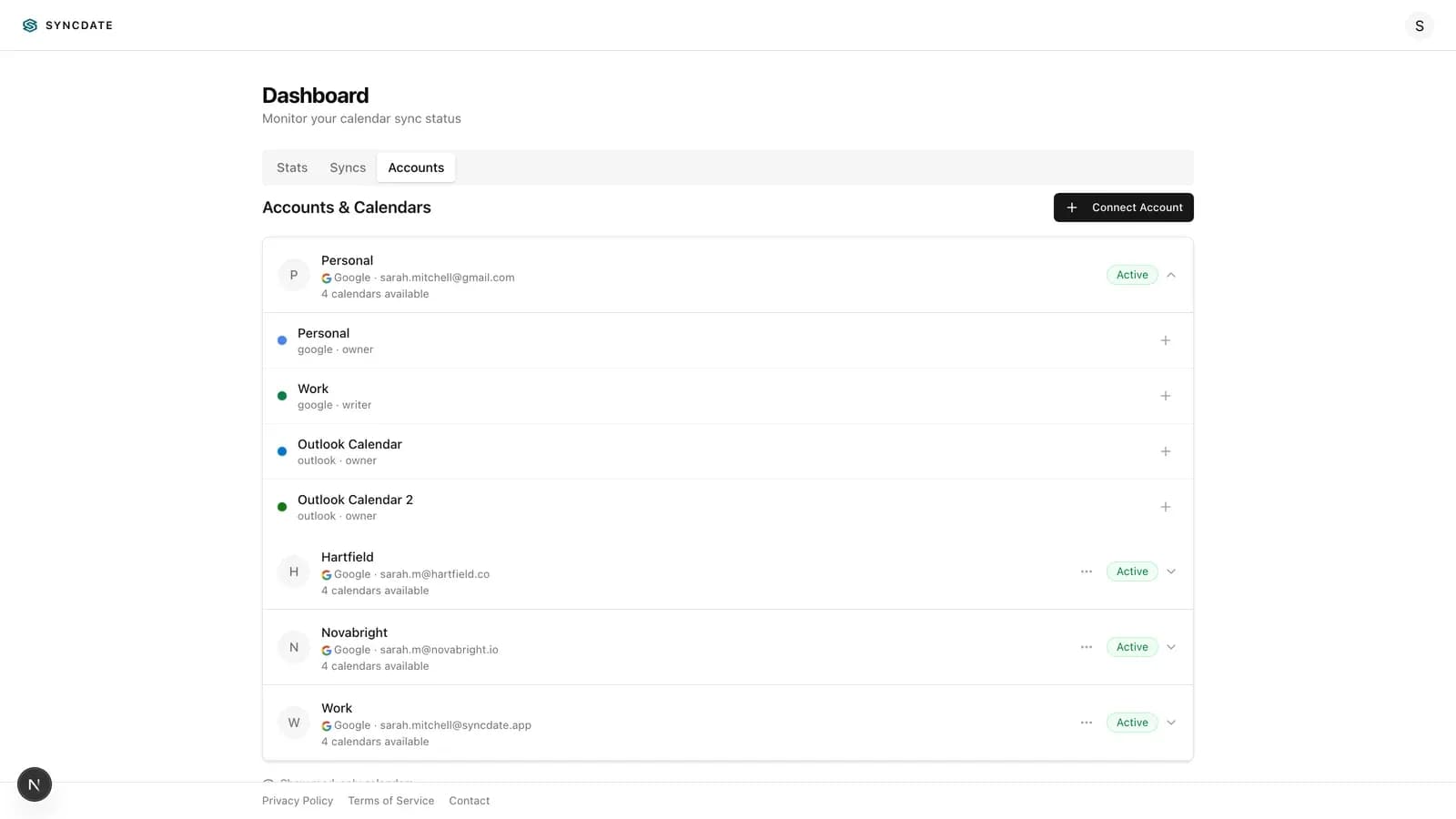
2Connect first account to SYNCDATE
Go to syncdate.app. Click “Start free.”
Authorize your personal Google account. Select the personal calendar. This is your hub.
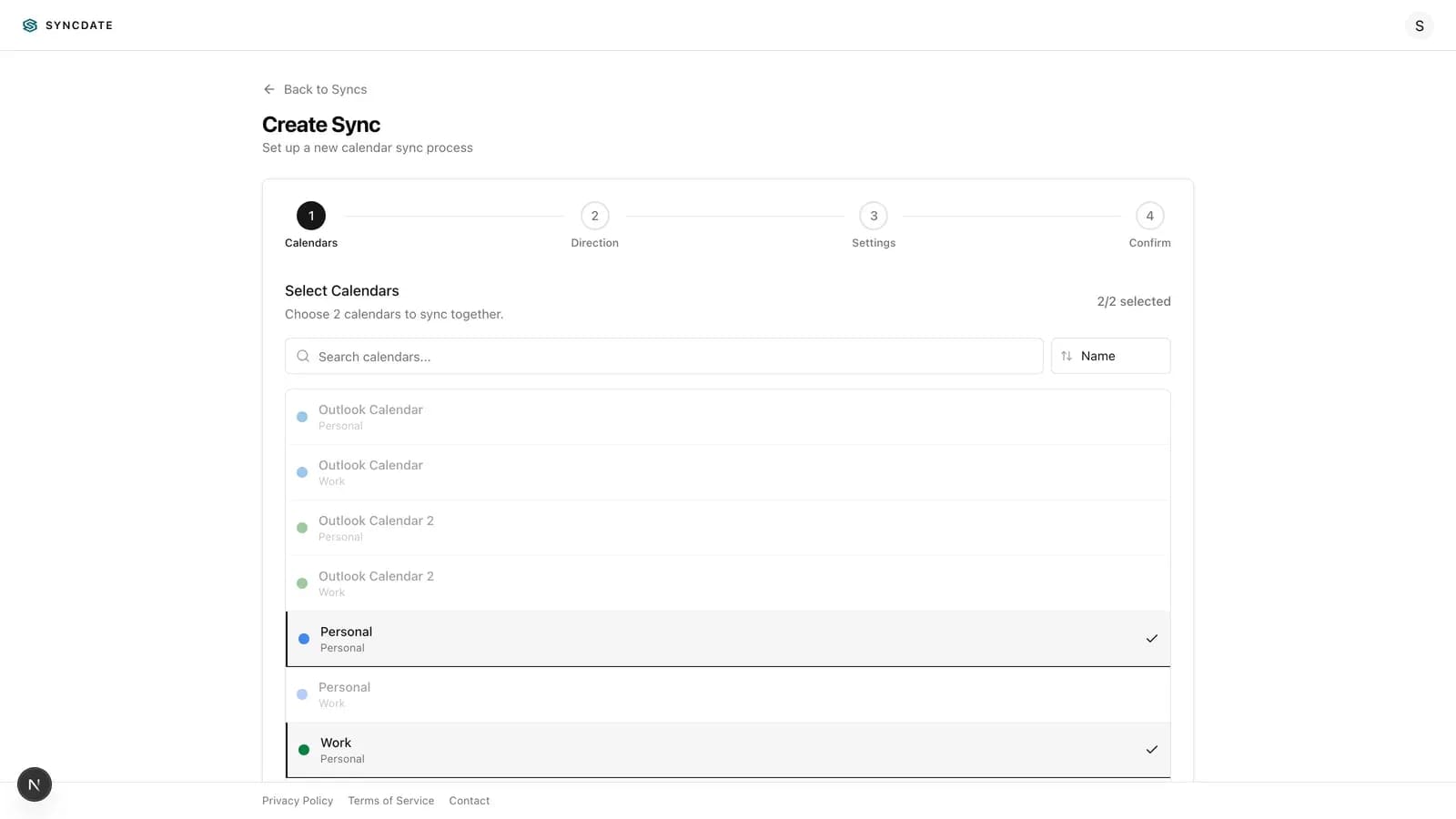
3Add first source calendar
Click “Add new sync.”
Select work as your second account. Authorize it.
Choose sync direction:
- Two-way: Changes in personal appear in work. Changes in work appear in personal. Ideal if both are regularly updated.
- One-way (Work → Personal): Only work updates flow to personal. Ideal if personal is just the view and work is the source.
For most people: One-way sync from work to personal. Your personal calendar is the dashboard. Work is a data source.
4Add second source calendar
Click “Add new sync” again.
Authorize your client Gmail account.
Choose sync direction (usually one-way, client → personal).
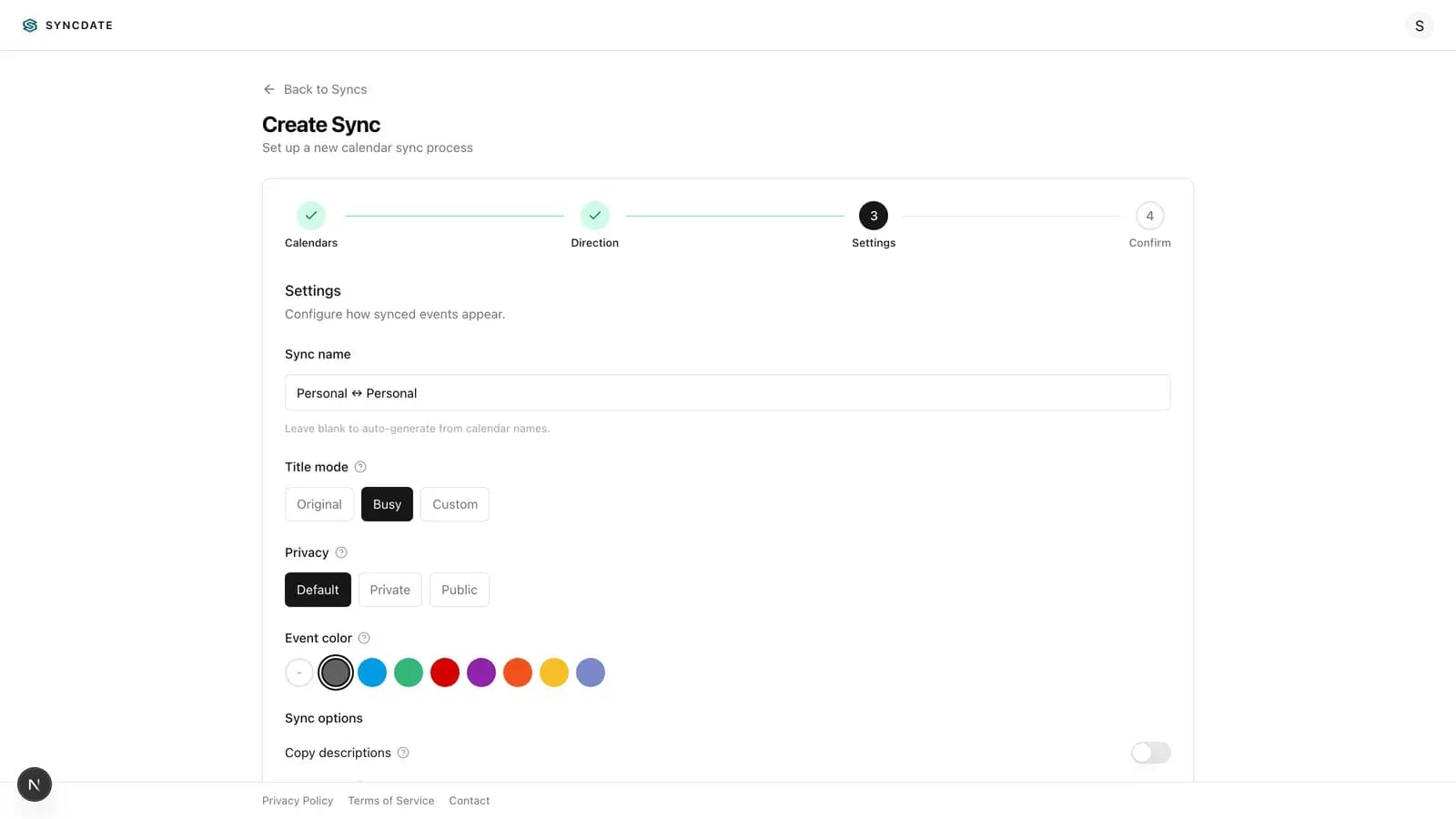
5Review privacy settings
SYNCDATE auto-masks events as “Busy” by default. This means your personal calendar shows “Busy” on work calendars, but no details.
Check this is set correctly. If you want full details visible on the synced side, change the privacy setting. (Most people don’t.)
6Verify syncs are live
Create a test event in your work calendar. Wait 4-5 seconds. Check your personal calendar. It should appear.
Modify the event in your work calendar. It should update in personal within seconds.
Delete the event. It should disappear from personal.
7Clean up or adjust
If something doesn’t look right, adjust privacy or sync direction. If you want to end a sync, SYNCDATE cleans up all synced events. No orphans left behind.
Pricing for Multiple Calendars
Free: Up to 2 calendars. 1 sync connection. Covers personal + one other.
Plus: up to 20 calendars across 5 Google accounts. Covers 4+ sync connections. This is where most multi-calendar users land.
Pro: up to 100 calendars across 20 Google accounts. For heavy users or teams.
See current pricing for plan costs.
For the hub-and-spoke example above (personal + work + client = 3 calendars), Plus is sufficient. For context, the average knowledge worker manages 2.6 calendar accounts according to Reclaim.ai's 2023 Productivity Trends report — making the 5-account Plus plan sufficient for most users.
Example: Remote Worker with Work, Personal, and Side Project
Meet Alex. Alex has three Google accounts:
- Main Google Workspace (employer): Work calendar
- Personal Gmail: Personal and life events
- Side project Gmail: Freelance client project
Without sync: Alex has to switch between three Gmail accounts to see availability. Easy to double-book.
With hub-and-spoke (personal as hub):
- Personal calendar = hub
- Work syncs one-way to personal (Alex sees work commitments in personal)
- Side project syncs one-way to personal (Alex sees freelance deadlines in personal)
Setup: 2 sync connections. The Plus plan covers both — see pricing.
Result: Alex opens personal calendar. Sees work + side project + personal events all in one view. No context switching. No double-booking.
Privacy: Work calendar shows “Busy” when personal events are synced. Side project calendar shows “Busy” for personal events. Details stay private. All data is hosted on EU infrastructure in compliance with GDPR requirements.
Example: Remote Worker with Work, Multiple Clients, and Personal
Meet Casey. Four calendars:
- Google Workspace (employer): Work
- Personal Gmail: Personal life
- Client A Gmail: Project A deadlines
- Client B Gmail: Project B deadlines
Hub-and-spoke setup:
- Personal calendar = hub
- Work → Personal (one-way)
- Client A → Personal (one-way)
- Client B → Personal (one-way)
Setup: 3 sync connections. Plus plan covers this.
Result: Casey’s personal calendar is the master dashboard. Work + two client projects all visible. Casey sees the week at a glance. Conflicts are obvious. Can block personal time across all client calendars if needed.
Example: Family Coordination Between Partners
Meet Jordan and Sam. They’re a couple managing personal schedules plus a shared family calendar.
Three calendars (per household):
- Jordan’s personal Gmail: Jordan’s appointments, commitments
- Sam’s personal Gmail: Sam’s appointments, commitments
- Shared family Gmail: Kids’ activities, house maintenance, shared events
Hub model: The shared family calendar is the hub.
Setup:
- Shared family calendar = hub
- Jordan’s personal ↔ Shared family (two-way)
- Sam’s personal ↔ Shared family (two-way)
This requires 2 sync connections. Plus plan covers this.
Result: When Jordan schedules a personal dentist appointment, it shows as “Busy” on the family calendar (details hidden from Sam). Same for Sam. But when either of them adds an event to the family calendar (kids’ school pick-up, family dinner), it’s immediately visible to the other in their personal calendar.
Privacy is maintained: Personal events don’t share details. Family events are transparent. Clear separation of concerns.
See also: Google Calendar sync for couples.
Frequently asked questions
Can you sync multiple Google Calendars for free?
Yes. SYNCDATE's free tier covers 2 calendars and 2 Google accounts indefinitely — no credit card, no trial expiry. For 3–20 calendars, SYNCDATE Plus covers the workload. For more than 20 calendars across multiple Google Workspace accounts, Pro scales further. See current pricing. Google does not offer native sync between separate accounts at any price.
How do I combine two Google Calendars from different accounts?
Google doesn't support combining calendars natively across accounts. The workaround is two-way sync: use SYNCDATE to connect both Google accounts and pick a primary calendar. Events from both accounts appear in one view, and changes sync back within seconds. Free plan covers 2 calendars.
Can I connect Google Calendars from two different accounts?
Yes, via a third-party sync tool. Google's own interface lets you view shared calendars from other accounts, but that's read-only and doesn't block time in scheduling tools. SYNCDATE connects two accounts with a real two-way sync — changes in either calendar appear in the other within seconds.
How do I link my work and personal Google Calendar?
Connect both accounts in SYNCDATE. Select your work calendar as the source and personal as the destination (or two-way if you update both). Work events appear in your personal calendar as "Busy" by default — colleagues can't see personal event details. Setup takes under a minute.
Can you sync multiple Google Calendars from different accounts?
Not natively. Google Calendar does not offer built-in sync between separate Google accounts. You can share calendars for read-only viewing, but that doesn’t block time or update scheduling tools. To truly sync multiple Google Calendars from different accounts, use a third-party tool like SYNCDATE that connects via OAuth 2.0 and creates two-way syncs between any calendars you choose.
How do I merge Google Calendars from different accounts?
You can’t merge Google Calendars natively — Google treats each account as separate. The closest solution is two-way sync: use SYNCDATE to connect all accounts and sync calendars bidirectionally. Events from every account appear on your primary calendar, and changes sync back. This gives you a single unified view without actually merging the underlying accounts.
How many syncs do I need for N calendars?
Hub-and-spoke: N - 1 syncs. 3 calendars = 2 syncs. 4 calendars = 3 syncs. 5 calendars = 4 syncs.
Mesh: N × (N - 1) ÷ 2. 3 calendars = 3 syncs. 4 calendars = 6 syncs. 5 calendars = 10 syncs. Use hub-and-spoke instead.
Can I mix two-way and one-way syncs?
Yes. In hub-and-spoke, it’s common to have two-way to your main work account and one-way from client calendars. Two-way where you update both. One-way where one side is read-only.
What happens if one account disconnects?
If you revoke access to a Google account (via Google Account permissions), SYNCDATE stops syncing from that account. Events that were synced remain in the hub calendar until you manually delete them or set the sync to clean them up.
Does it get slower with more calendars?
No. Each sync is independent. 1 sync or 5 syncs, speed doesn’t change. SYNCDATE uses webhook-based sync (events appear within seconds), not polling. Scaling doesn’t degrade performance.
Can I sync calendars within the same Google account?
Yes. If you have a Google Workspace account with multiple calendars, you can sync between them. Same process. Hub-and-spoke works internally too.
What’s the cheapest way to sync 5 Google Calendars?
Hub-and-spoke with one calendar as the hub. That’s 4 sync connections.
- Free tier: 2 calendars, 1 sync. Not enough.
- Plus: 20 calendars, covers 4+ syncs. This is your answer. See current pricing.
Mesh topology would require 10 sync connections. Hub-and-spoke wins on cost and simplicity.
What if I want to add a 6th calendar later?
With hub-and-spoke, you just add another sync connection. Plus covers up to 20 calendars. You have room.
Can I have different privacy settings per sync?
Yes. Some syncs can use “Busy” mode (details hidden). Others can show full details. Each sync has its own privacy setting.
What happens to events if I delete the sync?
SYNCDATE gives you the option to clean up synced events or leave them. Clean up means all events synced from that source are deleted from your calendar. Leave them means events stay but won’t update anymore. Your choice.
Hub-and-Spoke Is Your Answer
Multiple calendars don’t have to be a burden. Hub-and-spoke sync consolidates them into one view.
Pick your hub. Sync the rest. See everything. If you’re still deciding which tool to use, our calendar sync tool comparison covers the main options side by side — speed, pricing, privacy, and clean exit. Whether you’re starting fresh after the new year or returning to work after a break, hub-and-spoke is the pattern that scales.
For 3-5 calendars, it takes 15 minutes to set up. See current pricing. Saves you hours per month in context switching and conflict prevention.
Related: Sync personal and work Google Calendar, Google Calendar sync for couples, Avoid double-booking Google Calendar, Keep personal calendar private at work, Can coworkers see your personal Google Calendar?, Sync Google Workspace personal Gmail, Block personal time on work calendar, Google Calendar sharing vs syncing, Free Google Calendar sync tools, Is it safe for Google Calendar apps to access your account?